A. Create a CRS Request in the Provider Portal
Step 1: Log in and Start a Request
1. Log in to the Provider Portal using your username and password.
2. Select the CRS Dashboard tab.
3. Click Create CRS Request to open a new application.

4. On the instruction screen, click Continue to Request.

Step 2: Complete the Application
- Fill out each section of the application.
- Select Next to move forward.
- Fields marked with an asterisk (*) are required.
- You can select Back to return to a previous section.
- Selecting Cancel will save your work as a draft.
Step 3: Choose the Purpose of Search
After you select the Purpose of Search, you have two options:

Option 1: Provider completes the application for the applicant
- The provider fills out all required sections.
- This option requires a wet (handwritten) signature.
- You must:
1. Download the CRS form from the portal
2. Get the applicant’s signature
3. Upload the signed form back into the portal
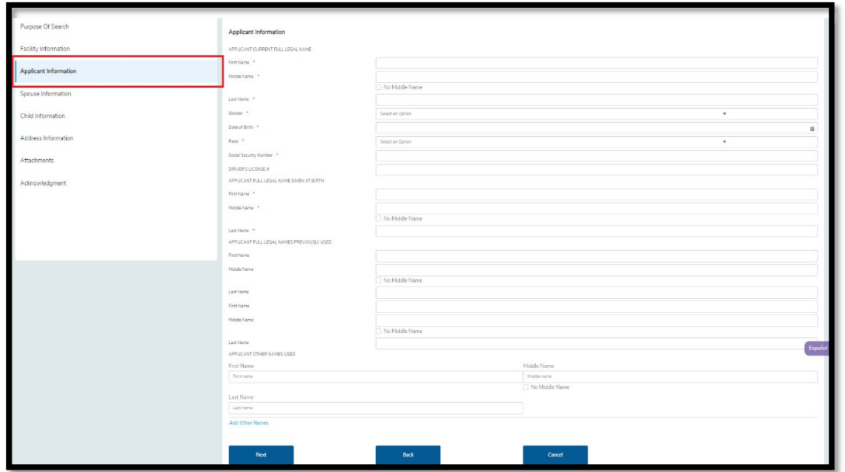
After selecting Yes, the Applicant Information section will open.

Step 4: Applicant Information
- Enter the applicant’s details.
- Use Add Other Names to include any additional names used by the applicant.
Step 5: Spouse Information
- If you answer Yes to any spouse-related question, you must enter the details.
- Use Add Spouse to include information as needed.
- Note: Only one legally married spouse can be added.

Step 6: Child Information
- If you answer Yes to any child-related question, details are required.
- Use Add Child to enter information for each child.

Step 7: Address Information
- If you answer Yes to previous address questions, enter the details.
- Use Add Address to include multiple prior addresses if needed.

Step 8: Attachments
- Download the Central Registry Search Request Form to obtain a wet signature (if required).
- Upload the signed form and any optional documents using the Upload (+) button.
- Do not upload files with the same file name.
- You may download or delete uploaded documents.
هام:
Downloading and uploading the CRS form may take up to one minute. Please be patient.

.png)
Step 9: Acknowledgment
This is the final step before submission.
- Payment-required providers will add the request to Pending Payment.
- Payment-exempt providers will submit the request automatically.
- After this step, the request is sent to the OBI Back Office.

B. Electronic Submission (Recommended)
Electronic submission allows the applicant to complete and sign their portion online.
Benefits of Electronic Submission
- No wet signature required
- Faster processing
- No downloading or uploading of signed forms
كيفية عملها
1. The provider enters the applicant information:
- الاسم الأول
- اسم العائلة
- عنوان البريد الإلكتروني

1. The system sends the applicant a secure email link.
2. The applicant completes and electronically signs the application.
3. The completed application is returned to the provider for submission.

ملاحظات هامة
- The link expires after a set time.
- Once expired, a new application must be started.
- Once the applicant submits the form, the link no longer works.
- If the provider edits applicant information after it is returned, a signed form must be uploaded.
C. Edit a CRS Request
- Select a CRS Request ID from the CRS Dashboard.
- If the request is editable, select Edit in each section.
- Even if no changes are needed, each section must be opened and reviewed.
- Non-editable requests can be viewed using Next (read-only).
.png)
.png)
Editable statuses include:
- Request Started
- Action Required
- Applicant Responded
- معلقة
- Returned for Revision
D. Pending Payment Dashboard
Add Requests to Cart
- Select Save & Add to Cart.
- Requests will appear under the Pending Payment tab.
- Up to 10 requests can be paid at one time.
.png)

.png)
خيارات الدفع
- eCheck
- Debit or Credit Card
You will be redirected to the Elavon payment system to complete payment.


After Payment
- Status updates to Submitted
- You receive a confirmation email and receipt
- The request moves to the CRS Review Queue
If payment is not completed, the request will remain Pending.

E. CRS Request Status Definitions
- Request Started – Draft in progress
- Request Sent to Applicant – Waiting on applicant
- Action Required – Applicant Responded – Returned to provider
- Pending – Payment in progress
- Submitted – Sent to OBI for processing
- Returned for Revision – Changes required
- Completed – Determination issued
You can filter requests by status on the CRS Dashboard.
G. Resend a Determination Letter
For Completed requests:
1. Select Resend Determination from the list view.
2. The most recent determination letter will be sent to the provider’s primary contact email.
F. Mark a Request for Deletion
Requests can be marked for deletion when in these statuses:
- Request Started
- Request Sent to Applicant
- Action Required – Applicant Responded
- معلقة
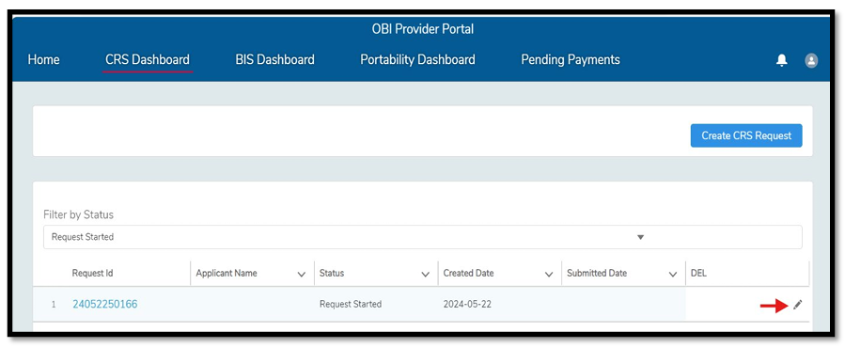
How to Mark or Unmark
- Select the pencil icon from the list view or
- Check Mark Record for Deletion on the request detail page
- Confirm and select Save
Records are deleted automatically by midnight.
You may unmark the request before that time if needed.


 / مكتب التحقيقات الخلفية/الموارد/بوابة مزود OBI/إنشاء دليل مستخدم لطلب التسجيل المركزي (CRS)





 ابحث عن القسم المحلي الخاص بي